
Frequently Asked Questions
Listed below are some of the questions I get asked regularly, along with a few useful Mac tips. Can’t find the answer you need? Feel free to contact me.
My printer, Wi-Fi, mouse or something else isn’t working. What should I do?
Like most electronic devices, the first place to start is the simple fix: restart the computer or device. On a Mac, click the Apple menu in the top-left corner and choose Restart…. You’d be surprised how many problems this simple step can correct.
And yes — there’s a reason “have you tried turning it off and on again?” became famous!
How do I find out which Mac I have?
When upgrading or changing computers, I may need some information about your current Mac and its setup. You may also need this information when checking compatibility with software or accessories, or when upgrading things such as RAM on older Mac models.
You can find this information by clicking the Apple menu in the top-left corner and choosing About This Mac. On newer versions of macOS, you can also open System Settings → General → About.
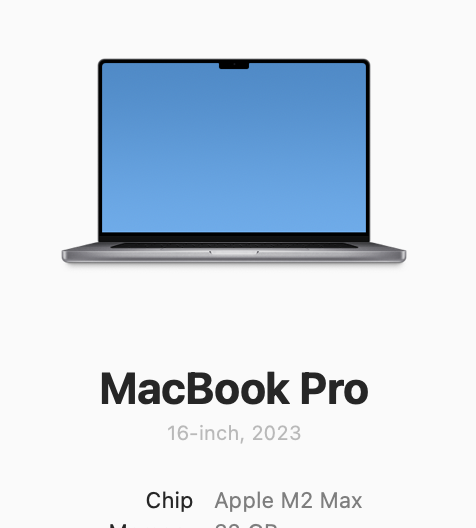


If you're looking to upgrade or replace your Mac, this information helps me identify exactly which model you currently have and makes it easier to recommend a suitable replacement.
Also let me know both the total storage capacity and approximately how much is currently being used. This is particularly important, as it makes it much easier to recommend the right storage size for your new Mac.
For example: 365GB used of 500GB storage.
How do I take a screenshot on my Mac?
To capture the whole screen, press Command + Shift + 3. To capture a selected area, press Command + Shift + 4, then drag around the area you want.
On newer macOS versions, Command + Shift + 5 opens additional screenshot and screen-recording controls.
How do I reset PRAM/NVRAM?
On older Intel Macs, restart the Mac and immediately hold Command + Option + P + R. Keep the keys held for around 20 seconds, then release them. The exact behaviour varies by model.
Apple silicon Macs handle this differently and generally don’t require the old manual PRAM/NVRAM reset procedure.
How do I do an SMC reset?
The System Management Controller on older Intel Macs can sometimes be reset to help with certain power, battery, charging, fan or hardware-related issues.
Apple silicon Macs do not use the old manual SMC-reset procedure. If you have an Intel Mac, the procedure varies by model. You can view the correct steps on Apple’s support page.
How do I start my Mac in Safe Mode?
Safe Mode can help when a Mac is behaving unexpectedly because it starts macOS with a reduced set of software and performs some checks. The steps are different for Apple silicon and Intel Macs.
Apple silicon: shut down, then press and hold the power button until startup options appear. Select your startup disk, hold Shift and choose Continue in Safe Mode.
Intel: restart and immediately hold the Shift key until the login window appears.
Note: In some cases, if you're using an Apple wireless keyboard, you may need to connect it directly to the Mac using its USB charging cable before restarting in Safe Mode.
What does Wi-Fi or Wi-Fi + Cellular mean on an iPad?
When you're looking to buy an iPad, you'll usually be asked whether you want a Wi-Fi model or a Wi-Fi + Cellular model. Here's the difference:
Wi-Fi model
Every iPad can connect to the internet using Wi-Fi — for example your home or work Wi-Fi, public Wi-Fi, or a Personal Hotspot from your iPhone. A Wi-Fi model does not have its own mobile data connection, so when you're away from Wi-Fi you'll need another way to get online, such as your iPhone's hotspot.
Wi-Fi + Cellular model
A Wi-Fi + Cellular iPad can use Wi-Fi just like the standard model, but it can also connect directly to a mobile data network when Wi-Fi isn't available. This can be particularly useful if you travel, work away from home, or regularly need internet access while you're out and about. A suitable mobile data plan/eSIM is required, and availability of 4G or 5G depends on the iPad model, carrier and coverage.
Not sure which one to buy? If your iPad will mostly be used at home or somewhere with Wi-Fi, the Wi-Fi model may be all you need. If you regularly need internet access while away from Wi-Fi and don't want to rely on your iPhone's Personal Hotspot, a Wi-Fi + Cellular model may be worth considering.
What do USB-C and “normal USB” mean?
Most current Macs and many iPads use USB-C shaped connections, while older accessories often use the larger rectangular USB-A plug. Older USB devices can usually still be used with the right adapter, hub or dock.
There are many types of USB connections, with different connectors depending on the device being used. There are also many types of USB-C adapters and hubs available, offering different combinations of ports.
If you’re replacing a Mac and have printers, hard drives, displays or other accessories you still want to use, let me know what you have and I can help work out which adapters or connections you’ll need.
How do I change my Mac desktop picture?
On current macOS versions, open System Settings → Wallpaper. You can choose one of Apple’s wallpapers or add your own photo. Older versions of macOS use System Preferences → Desktop & Screen Saver.
Some examples of the different wallpapers and screen savers can be .
Can I have Apple TV-style aerial screen savers on my Mac?
Yes. Recent versions of macOS include Apple’s own landscape, cityscape, underwater and Earth screen savers and wallpapers. You can choose them in System Settings → Screen Saver.
Some of the aerial wallpapers can be .
An alternative for the various rotating aerials like those used on Apple TV is Aerial, which can be downloaded from its website.
Note: It can help to adjust Aerial’s cache settings to limit how much content is stored on your Mac. If a large number of aerial videos are cached locally, they can use a considerable amount of storage space.
What are some useful Option-key shortcuts?
The Option key can reveal extra commands and change the behaviour of many Mac actions. These are the main modifier keys you'll see on a Mac keyboard:
Tip: Holding Option while opening some menus can reveal additional commands and information.
Ask me.
If your question isn’t covered here, tell me what you’re trying to do or what has gone wrong and I’ll work out the simplest way forward.